

FrEQ by Blak Marigold
Find the harshness. Keep the character.
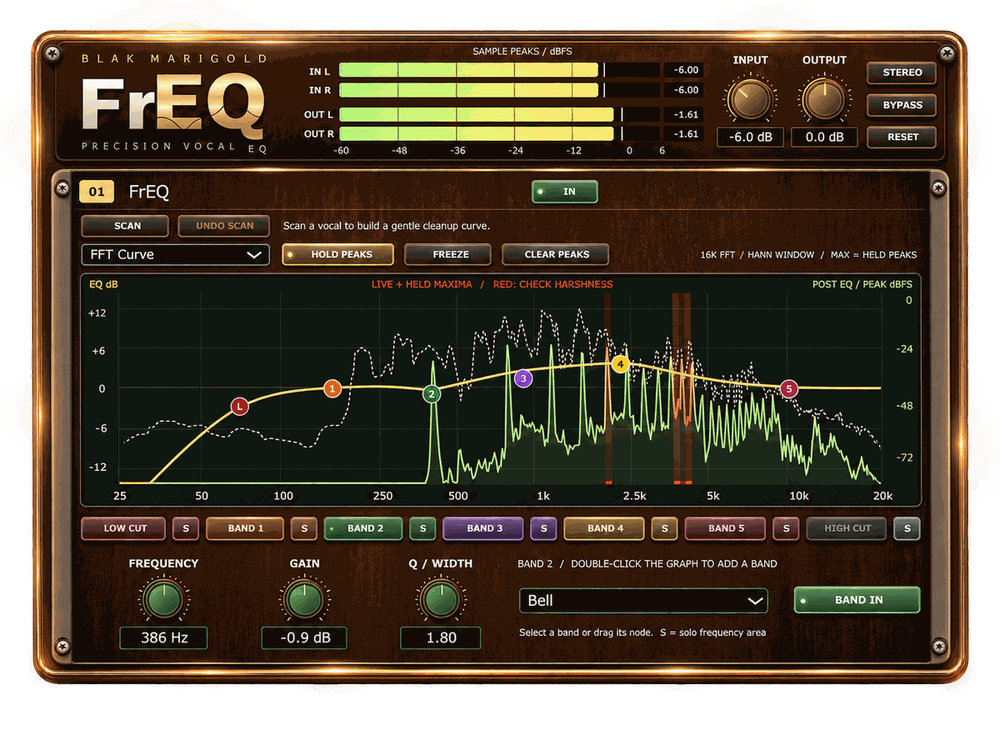
FrEQ highlights potential harsh vocal frequencies in red, lets you audition them with Band Solo, and gives you precise control over the cut.
Windows x64 · VST3 · Tested in Studio One 7
Explore FrEQ
Three tools for a cleaner vocal.
See where to listen.
Red highlights draw attention to persistent peaks that may need investigation.
Hear it before you cut.
Band Solo lets you audition the frequency area before making a change.
Get a starting point.
Smart Scan analyzes about six seconds of active audio and creates an editable, balanced cleanup curve.
Red bands mark persistent peaks worth a closer listen.
Waterfall view
Catch resonances that keep coming back.
Some harshness only shows up on a vowel, a held note or a loud line.
The Waterfall view shows how frequency energy builds and fades over time. A resonance that keeps returning shows up as a streak you can follow.
Find it in the Waterfall, solo it, then place a band on it.
Waterfall view. Recurring resonances show up as streaks over time.
The developer story
Built at Blak Marigold Studio
“I built FrEQ for the frequency problems some engineers can’t hear. Sometimes you need to see the problem, on a clean platform, to fix it in a recording.
In my journey, dynamics and proper gain staging have always been the foundation of a clean mix. FrEQ is the EQ I reach for first to tame frequencies early in a mix, so everything stays clean and controlled.
The harshness view was inspired by the best visual EQs, then rebuilt for vocals. Smart Scan listens to a short section of audio and gives you an editable, balanced starting curve.
This is from one audio engineer to another. One EQ that helps you find the problem and fix it fast, without getting too technical.”
Michael Smith (Knolly Boy 2K), owner and lead engineer, Blak Marigold Studio, Manor, TX
Michael's music credits total over 1.4 billion streams. See his credits on Muso.ai.
Planned for a future update: a sidechain mode, where FrEQ’s bands react to a sidechain input so the vocal and the competing parts stop fighting. It is not in the current version.
Need a vocal mixed instead? See mixing and mastering at Blak Marigold.
Also inside
More tools for close listening.
- Hold Peaks and Clear Peaks. A dashed line keeps the loudest moments while the live spectrum moves.
- Freeze. Lock the analyzer picture to study it. Audio and EQ keep running.
- Five analyzer modes. FFT Curve, 1/3 Octave, 1/12 Octave, Waterfall and Scope.
- Seven color-coded bands. Five Bell or Shelf bands plus Low Cut and High Cut.
- Direct graph editing. Drag a node, or double-click to add a band.
- Undo Scan. Go back to your settings from before smart Scan in one click.
- Meters and trim. Input and output sample-peak meters with ±18 dB trim.
- Stereo and Mono modes and a resizable interface.
Technical specifications
| Specification | FrEQ |
|---|---|
| Plugin format | VST3 |
| Current platform | Windows x64 |
| Verified host | Studio One 7 |
| Channel configurations | Mono and stereo |
| EQ arrangement | Five flexible center bands, Low Cut, High Cut |
| Center-band shapes | Bell, Low Shelf, High Shelf |
| Center-band frequency | 20 Hz to 20 kHz |
| Center-band gain | ±12 dB |
| Center-band Q | 0.10 to 18.00 |
| Low Cut | 25 to 250 Hz; 12/24 dB per octave |
| High Cut | 1 to 20 kHz; 12/24 dB per octave |
| Input/output trim | ±18 dB |
| Analyzer | 16,384-point FFT; Hann window |
| Analyzer modes | FFT Curve, 1/3 Octave, 1/12 Octave, Waterfall, Scope |
| Metering | Input/output L/R sample peaks in dBFS |
| Display tools | Hold Peaks, Clear Peaks, Freeze |
| Processing latency | 12 samples; 0.25 ms at 48 kHz |
| Smart Scan | Analyzes about 6 seconds of active audio; produces editable EQ settings |
| Parameter control | Host automation |
| Interface | Resizable |
Meters show sample peaks, not true peak or LUFS. Other hosts have not been tested yet.
FrEQ questions
What does the red highlighting mean?
Red marks persistent, prominent peaks in the upper mids and highs. They are potential problem areas to check, not automatic cuts. Each highlight stays visible for about two seconds after detection ends, then fades.
Should I cut every red frequency?
No. Red highlights identify potential areas to investigate. Use Solo, listen to the full vocal, and decide whether a change improves the sound.
What does smart Scan do?
Smart Scan analyzes a short section of audio, about six seconds of active audio, and gives you a balanced starting curve using FrEQ's own bands. It can replace the current curve, every setting stays editable, and Undo Scan restores your previous settings.
Does FrEQ make the decisions for me?
No. The highlights and smart Scan give you places to listen and a starting point. You make the final call with your ears, in the context of the mix.
What does Freeze do?
It freezes the analyzer display for inspection or screenshots. Audio and EQ processing continue.
Will Solo affect my offline export?
Band Solo is a temporary audition function and is excluded from offline rendering.
Which systems and DAWs does FrEQ support?
FrEQ is a VST3 plugin for Windows x64. Studio One 7 is the host tested so far.
Is sidechain mode planned?
Yes, for a future update. It is a mode where FrEQ's bands react to a sidechain input, so the vocal and the competing parts stop fighting. It is not in the current version.
How do I get FrEQ?
FrEQ is not on sale yet. Sign up with your email on this page and we will email you when FrEQ launches.
Be first to hear when FrEQ drops.
Get an email when FrEQ is ready.